Tutorials / Creating a recipe
Creating a recipe
When you are all set with Complete Inventory Management, follow these steps to set up your system.
Creating a recipe is on Inventory, under the materials table. A recipe records how much of each material a dish, add-on, or takeaway pack uses. The overview is Complete Inventory Management. Create the materials in How to work on materials first. Supplier bills that set the rate are in How to work on purchases, from names in How to work on suppliers.
1. Create the recipe
Add Recipe opens the recipe dialogue on --Select item--. The list leaves out items that already have a recipe. Pick Item, Variant, and Sub-variant. Save stays off until an item and a material are chosen.
Copy from a similar item lists other items in the same category that already have a recipe. Choosing one loads the dish materials for this variant and sub-variant, add-ons with the same name, and packaging into the form. When the form already has materials, QuickKOT asks before loading them. Save stores the recipe.
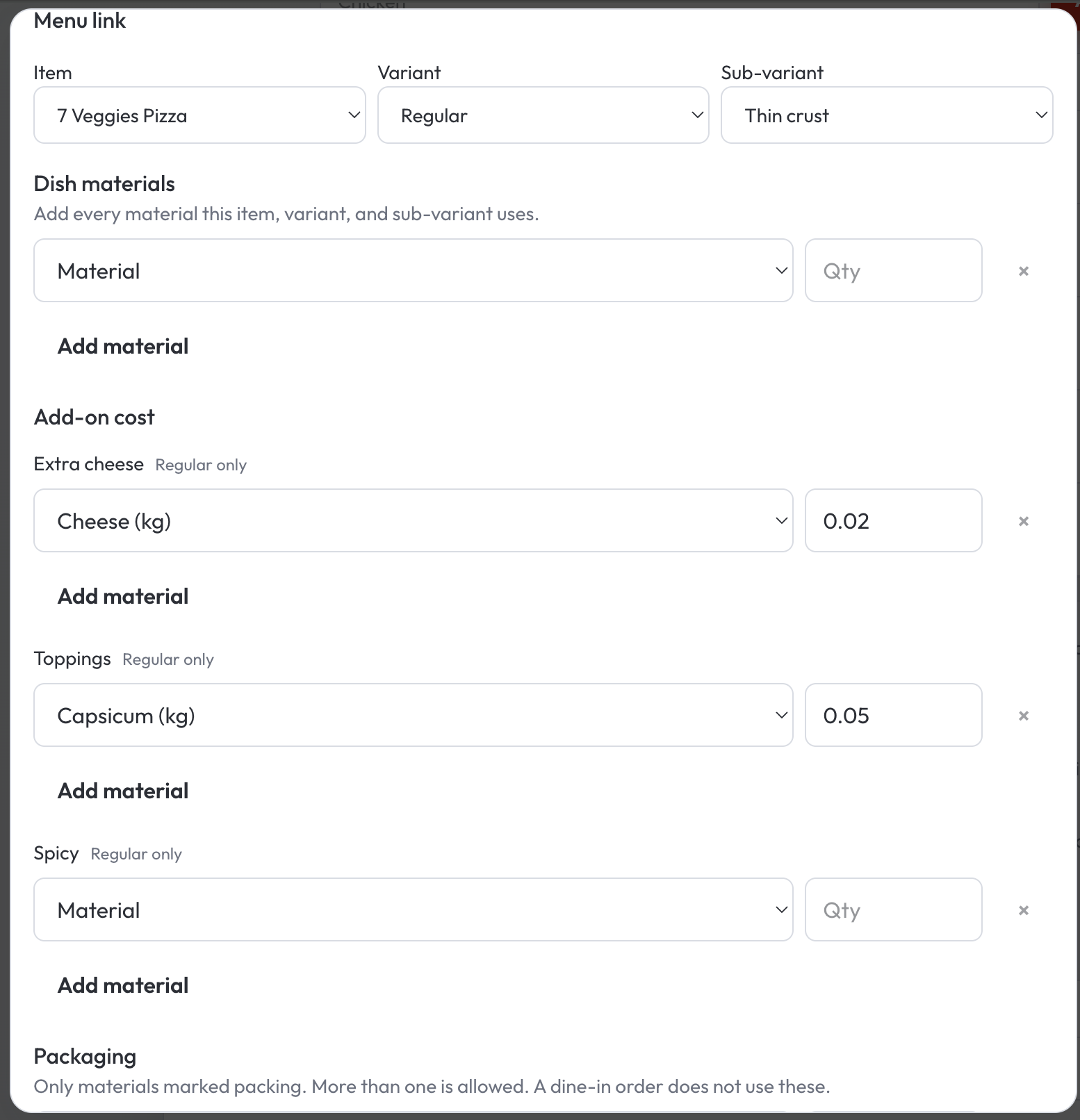
Dish materials — every material this item, variant, and sub-variant uses, each with a quantity. Add material for another row.
Add-on cost — when that item has add-ons, each add-on has its own materials and quantities.
Packaging — only materials marked Packing material in How to work on materials. More than one packing material is allowed. Packaging is used when the order is takeaway.
Save. The result says the recipe is saved and packaging counts on a takeaway order.
2. Review and edit
The list groups by item name, 10 items at a time. The item name opens the recipe: Dish, Add-on, or Packaging, with the variant and the quantity. Close leaves the list. Edit opens the recipe form with that item filled in. Remove drops one row. Save and errors open a dialogue with Close.
3. What a completed order saves
When the order is completed, QuickKOT saves a material cost for each part of the recipe that exists then: the item and its variant and sub-variant, the add-on, and takeaway packaging. Gross Profit uses that saved cost. The rate is the purchase rate per quantity from How to work on purchases.
Disabling a material unlinks it. That step is in How to work on materials. Orders already completed keep the cost saved at completion.
Related lessons
These five lessons are one set. Each page links to the others.