Tutorials / How to work on purchases
How to work on purchases
When you are all set with Complete Inventory Management, follow these steps to set up your system.
Add the supplier first in How to work on suppliers. The overview is Complete Inventory Management.
1. Open Purchase
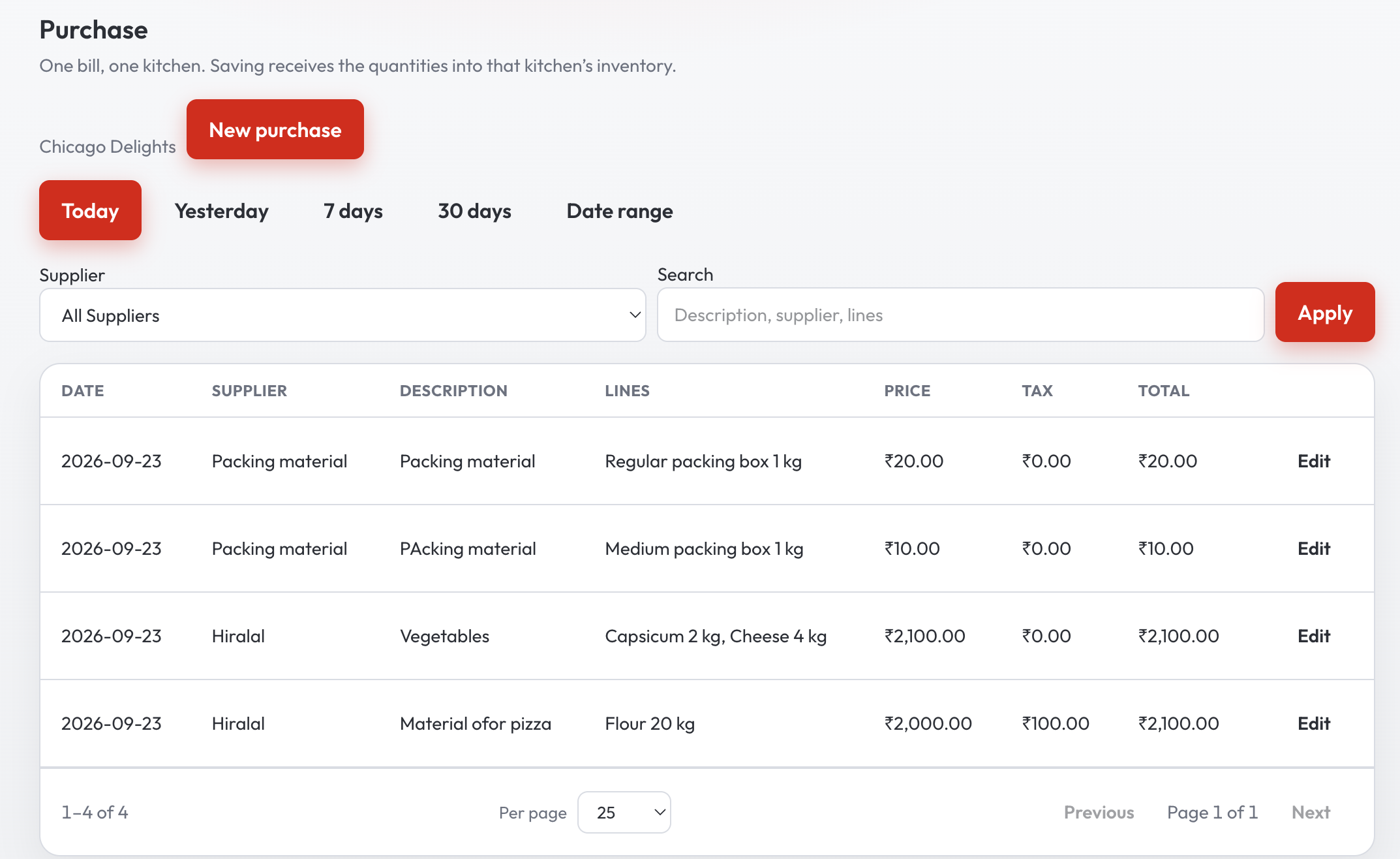
Purchase. New purchase opens a dialogue. Today, Yesterday, 7 days, 30 days, and Date range filter the list. Apply runs the supplier and search filters.
2. Fill the bill
Choose a supplier from How to work on suppliers. Set the date, then a Description. Each line is a material from How to work on materials, a Qty, and a Rate per qty. Price is quantity times rate. Tax % is for tax that is levied on that line. The line total is price plus tax. Add line for another material.
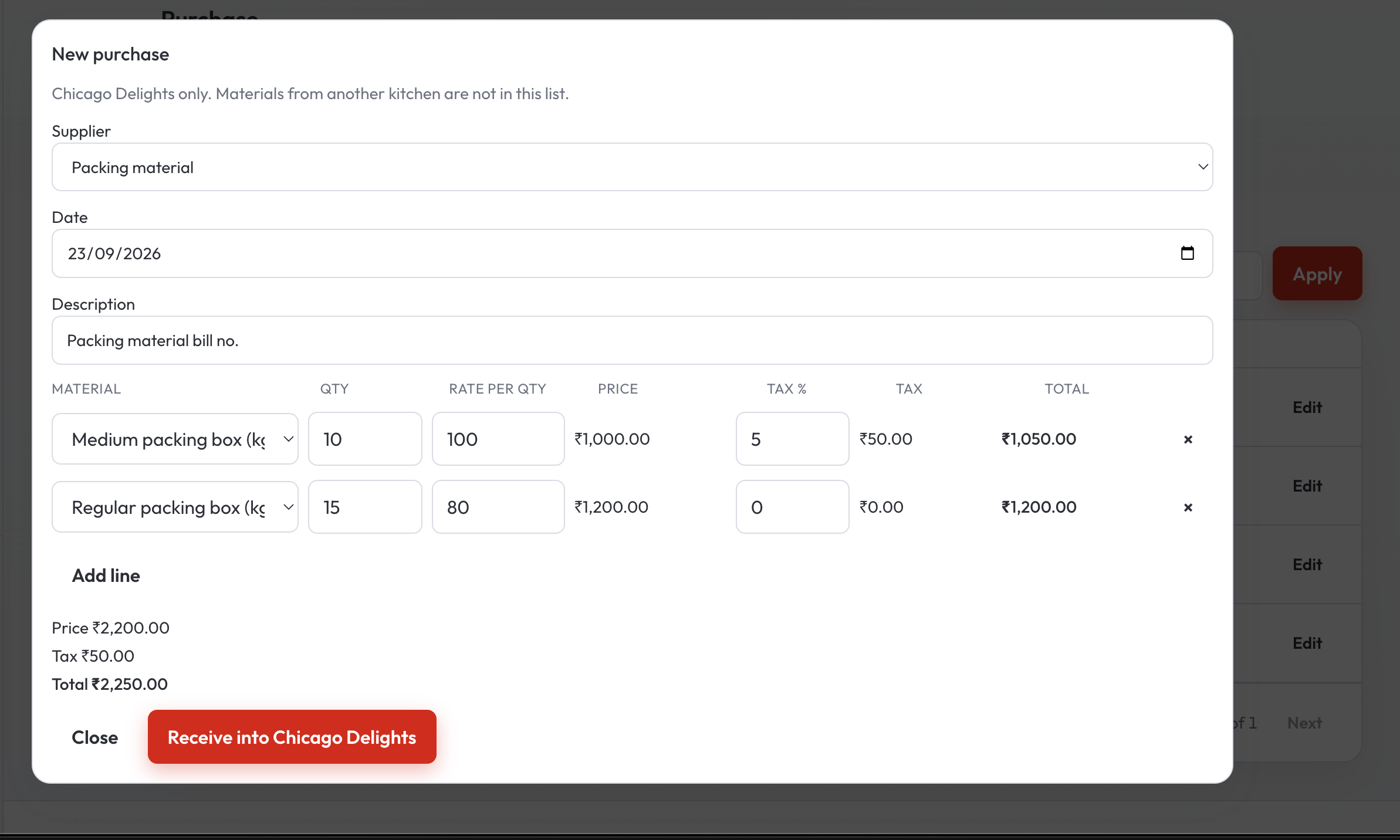
Receive into saves the bill and adds those quantities on hand. The dialogue then shows the result. Close.
3. Find a bill
Search with Today, Yesterday, 7 days, 30 days, or Date range. Supplier can be All Suppliers or one name. Type in Search and press Apply. The list pages 25 rows, or 50 or 100.
4. Edit a bill
Edit on a row opens the same dialogue with the bill filled in. Save changes the quantities on hand by the difference. A material later moved to Disabled can stay on a line that already uses it. New lines use materials still on the active list in How to work on materials.
When an order is completed, the rate saved for a recipe comes from these bills. The recipe is in Creating a recipe.
Related lessons
These five lessons are one set. Each page links to the others.