Tutorials / How to work on materials
How to work on materials
When you are all set with Complete Inventory Management, follow these steps to set up your system.
The overview is Complete Inventory Management. Stock from a supplier arrives through How to work on purchases, using a name from How to work on suppliers.
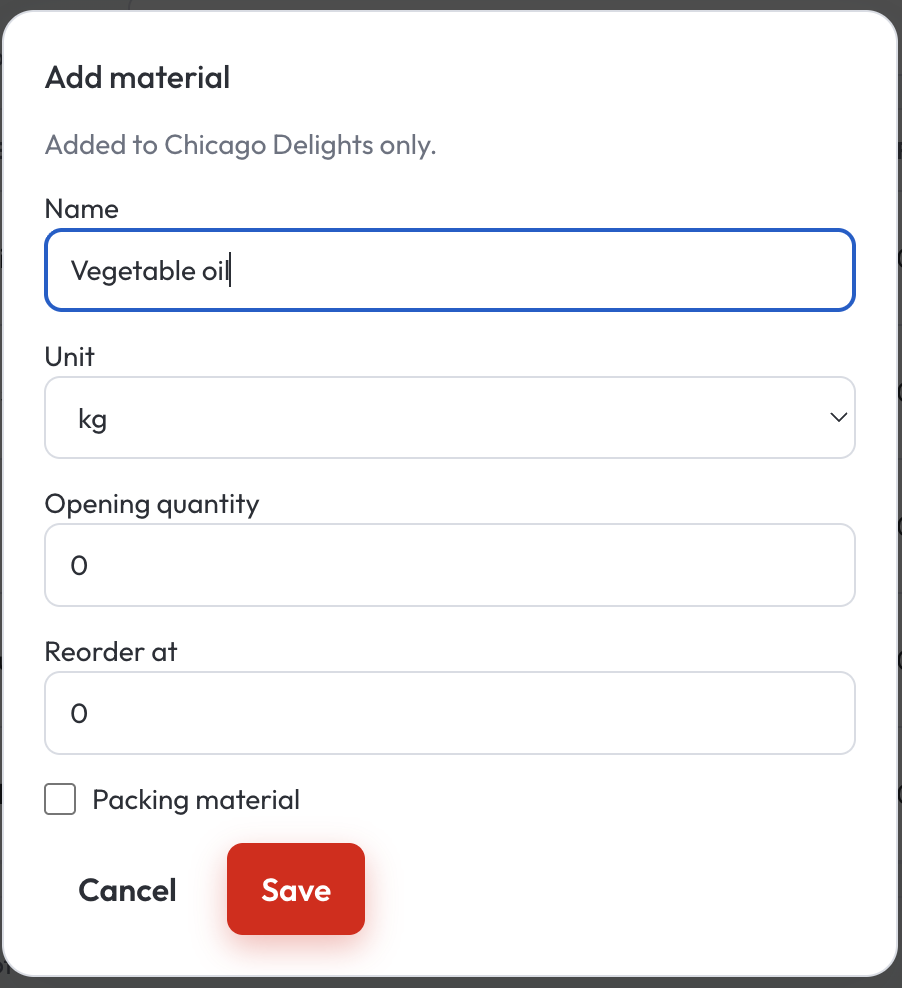
1. Add material
Inventory. Add material. Fill Name, Unit (kg, g, L, ml, pcs, or pkt), Opening quantity, and Reorder at. Packing material starts unchecked. Tick it when this material is takeaway packaging in Creating a recipe. Save.
The table shows 10 materials at a time. Search filters the name. Materials is the active list. Disabled is the other tab.
2. Name, Adjust, and reorder
The material name opens the menu items that use it. Close is the only button there. Edit the recipe in Creating a recipe.
Adjust opens a dialogue: Change (for example -0.5 or 2) and Reason (Count or Waste). Save adjustment. A supplier bill is recorded on How to work on purchases.
When on hand is at or below Reorder at, the row is marked Reorder.
3. Edit or disable
A material that has never been in a recipe has Edit next to Adjust. The dialogue edits name, unit, on hand, reorder at, and packing. Delete is on that dialogue. Save and Delete each ask in their own dialogue.
A material that has been in a recipe has Disable. The dialogue lists the menu items and warns that this material will be removed from all of those recipes. Confirming removes it from the recipes and moves the material to Disabled. Enable puts it back on Materials. Create the recipe again in Creating a recipe.
Disabled materials stay off new purchase lines and a new recipe. Orders already completed keep the cost saved at completion. That cost is explained in Creating a recipe.
Related lessons
These five lessons are one set. Each page links to the others.