Tutorials / Advance orders: cakes, catering and parties
Advance orders: cakes, catering and parties
Advance orders are orders booked today for a later date and time: a birthday cake for Saturday, lunch for forty next week, a party at your place. You take the order and an advance, the guest gets a receipt, the kitchen gets the order when it is due, and on the day the guest pays only the balance. The example is Green Leaf Café, Park Street. Advance orders are on Economy, Premium and Enterprise. Button names match the app.
1. Settings first
A manager opens Settings › Advance orders.
- Default advance %: where the advance starts on every booking, for example 50.
- Book at least (hours ahead) and Book up to (days ahead): how soon and how far ahead an order can be booked.
- Booking with no advance: a manager only, anyone, or never.
- Send to kitchen (hours before ready time), for example 3 for a cake ready at 5:00 PM to reach the kitchen at 2:00 PM.
- When an order is due: Ask on screen first (a pop-up with a sound on every open staff screen) or Send automatically (straight to Tickets and the kitchen, for kitchens with a screen).
- Ask cake details for: tick your cake categories. Items in them ask for weight, egg or eggless, shape and the message.
- Full refund up to (hours before) and After that, keep a flat amount or a percentage. This is printed on every receipt as your cancellation terms.
2. Book an order
Open Advance orders and press + New advance order. Tap dishes on the right to add them, as on POS. Tapping a dish again adds one more. For a cake, fill in the weight, egg or eggless, shape and the message on the cake.
Under Guest and time, type the mobile number and name, and pick Takeaway, Delivery (with the address) or At our place (with a table or area). Set the date and time under Ready on. The line under it shows when the order goes to the kitchen.
Under Advance, keep the default or press Full or No advance, and pick how the guest paid: cash, card, UPI or split. Press Book and take.
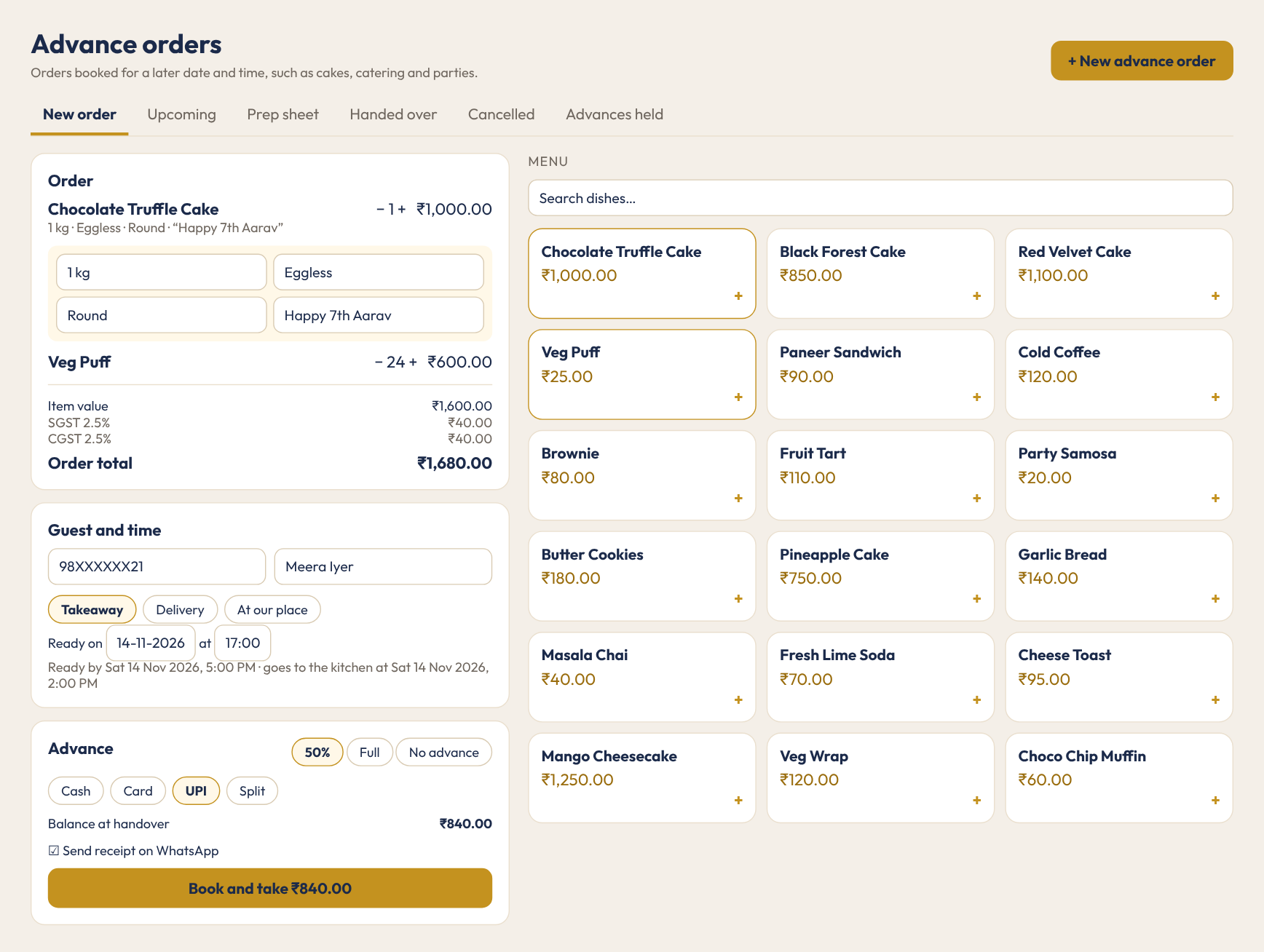
Prices and taxes are locked at booking. A menu change later does not change what the guest was told.
3. The receipt
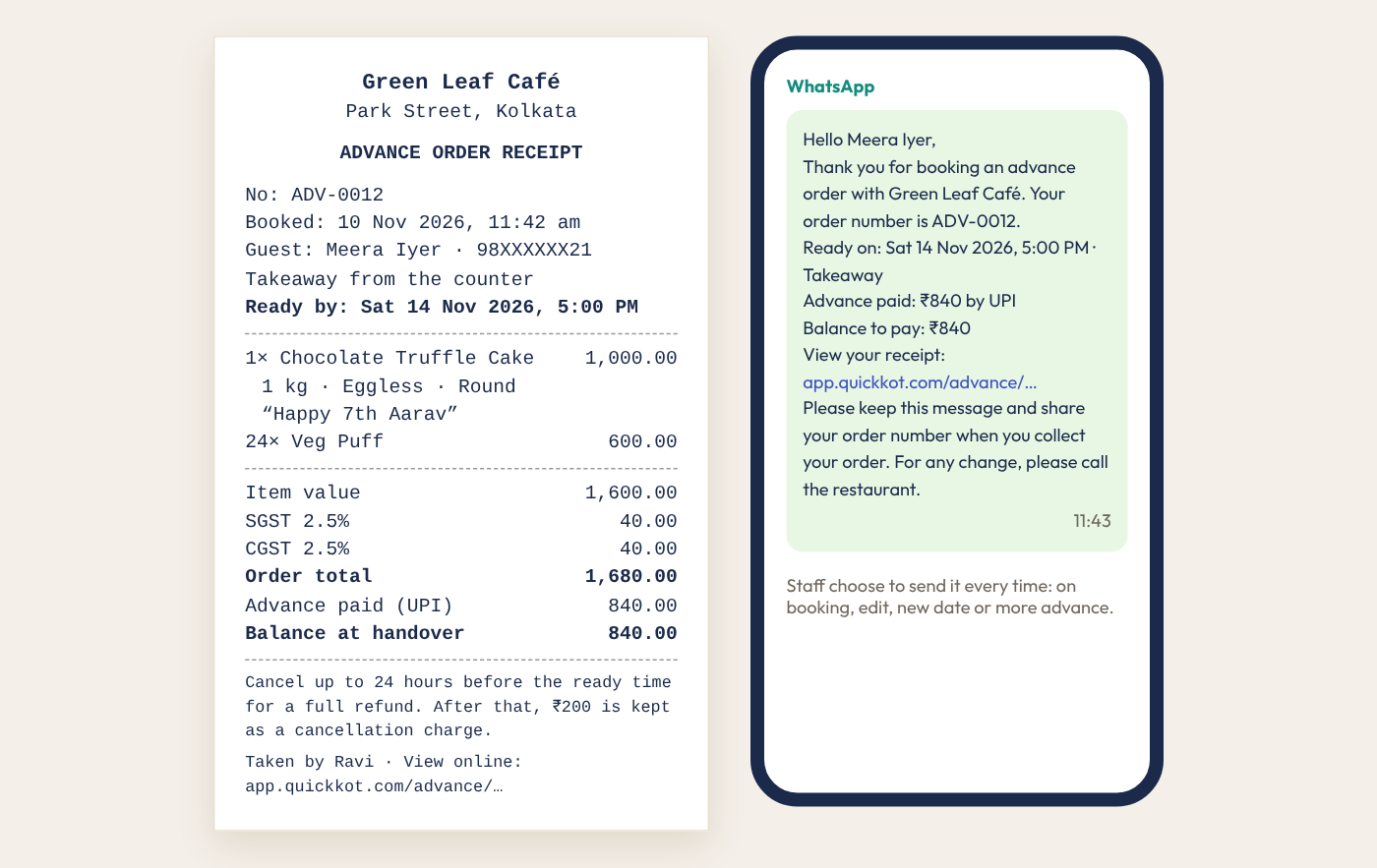
The receipt prints with the order number (ADV-0001 onwards, separate from your bills), the items and cake details, the ready-by time, the advance, the balance and your cancellation terms. It has a link the guest can open on their phone.
With WhatsApp set up, Send receipt on WhatsApp is under the advance. Staff tick it each time: on booking, and again on an edit, a new date or more advance, so the guest hears about every change and nothing is sent without staff choosing it. The tick starts on or off as set in Settings.
4. Upcoming, Prep sheet and Advances held
Upcoming shows the next eight days. Tap a day to see only that day. Each order is marked Booked, In kitchen, No advance or Overdue, with the advance and the balance. Tap an order to open it.
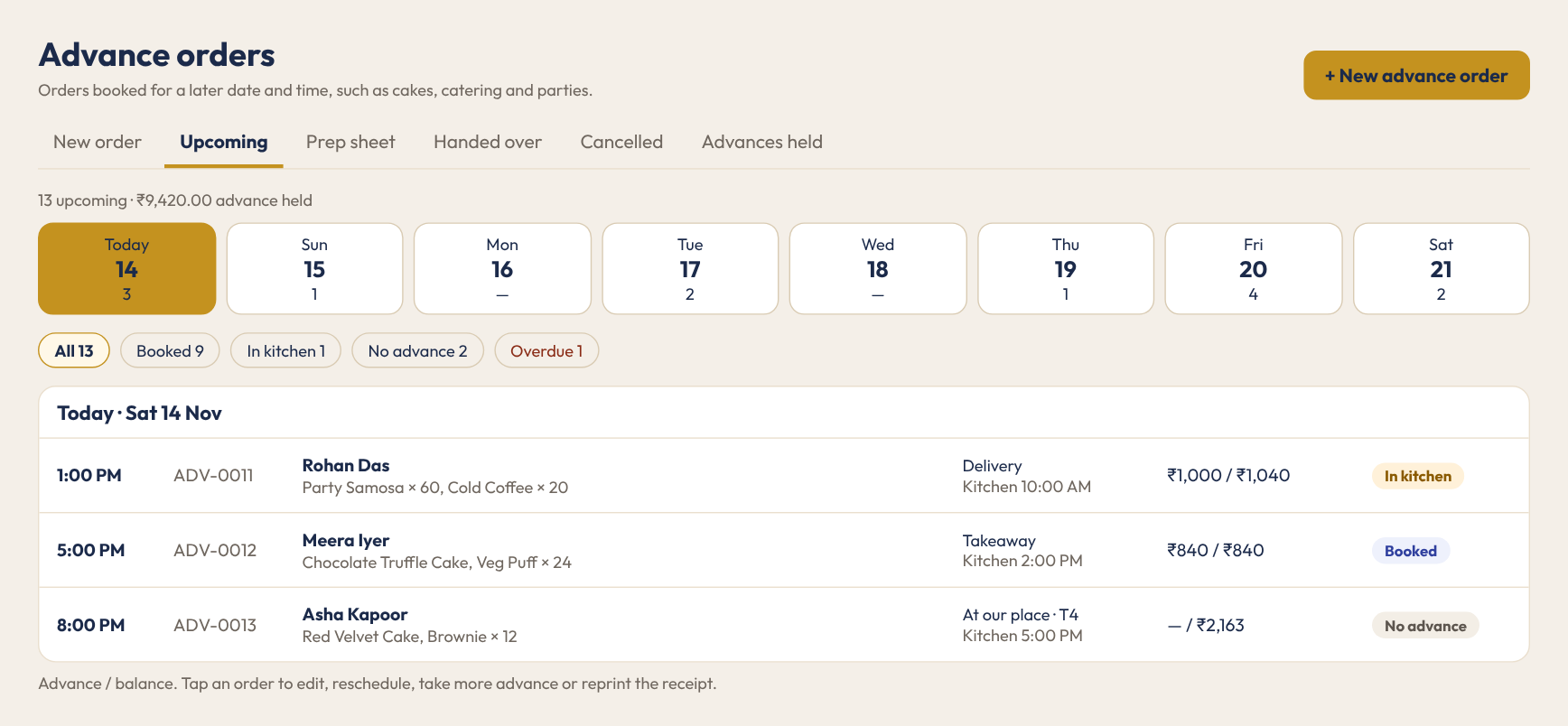
Prep sheet adds up what the kitchen must make for a day, with every cake’s details. Advances held lists the money you are holding and for whom. On the first login of the day, staff also see today’s advance orders before service starts.
5. Change an order
On the order, use Edit items, Reschedule or Take more advance. A new date moves the kitchen time with it. Every change is written in the order’s History with who made it. Once the order is in the kitchen, change it on its ticket instead.
6. When it is due
At the kitchen time, every open staff screen shows Advance order due for the kitchen with a sound. Send to kitchen and print KOT makes the ticket. Remind me in 10 min asks again ten minutes later. Two screens pressing at the same minute still make one ticket. With Send automatically in Settings, the order goes straight to Tickets instead. You can also press Send to kitchen now on the order at any time.
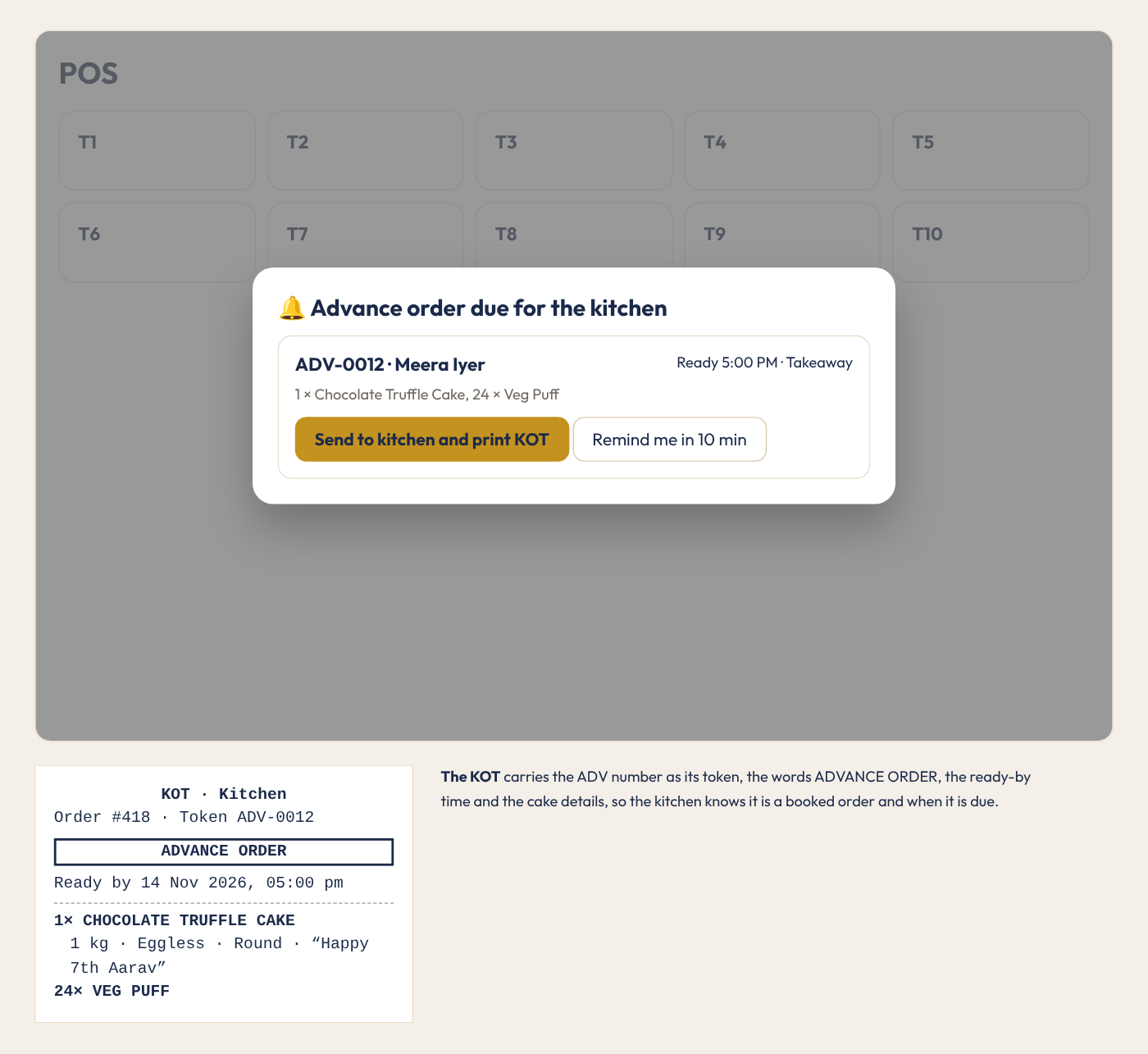
An At our place order for a table whose guests already have a running ticket is added to that ticket, and only the new items print on the KOT.
7. Handover
The ticket shows on Tickets with its ADV number. When the guest collects, open it and take payment. The pay screen shows the advance already paid and asks only for the balance. The bill shows the advance too.
8. Cancel
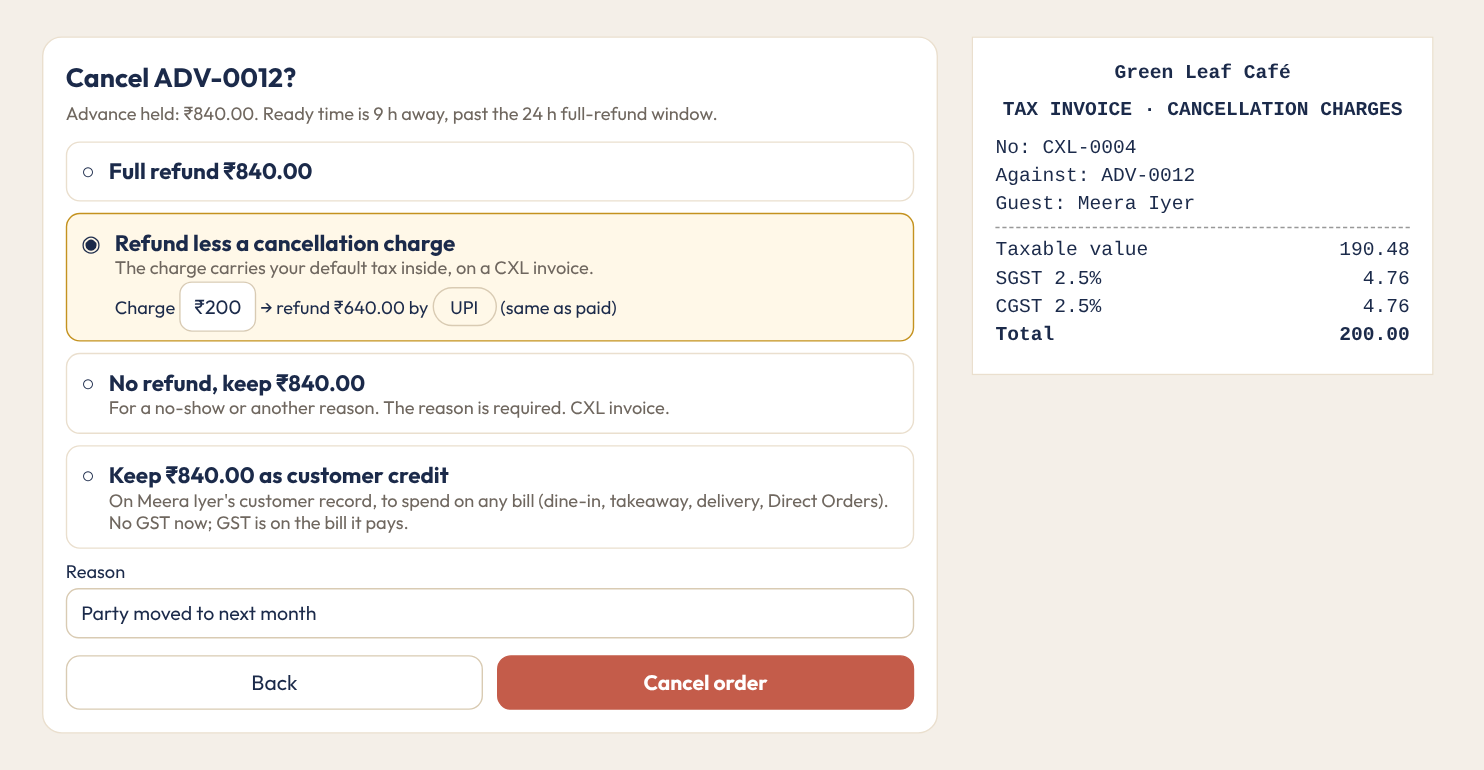
On the order, press Cancel order. The screen says whether the guest is inside your full-refund window. Choose:
- Full refund: the whole advance back, in the way it was paid or another mode.
- Refund less a cancellation charge: keep the charge, refund the rest.
- No refund: for a no-show; the reason is required.
- Keep as customer credit: the whole advance goes on the guest’s customer record to spend on any later bill.
Any amount you keep gets its own tax invoice, CXL-0001 onwards, with your default tax inside. It goes into GSTR-1 with the rest of your sales. If the order was already in the kitchen, its ticket is cancelled too.
9. Customer credit
A guest’s credit shows on Customers with its history. To spend it, type the guest’s number under Customer info when taking payment, or open a bill that already has the customer. The pay screen shows Credit with the balance. Pick it alone, or use Split when the credit does not cover the bill.
Credit also works when you cancel a paid bill or cancel items on one. In the refund step, pick Customer credit instead of cash, card or UPI, or split it. The guest’s name and phone are filled in from the bill, or you type them. Credit paid on that bill goes back to the guest, and the rest is added as new credit. Nothing leaves the drawer, so the expected cash does not change.
10. Reports
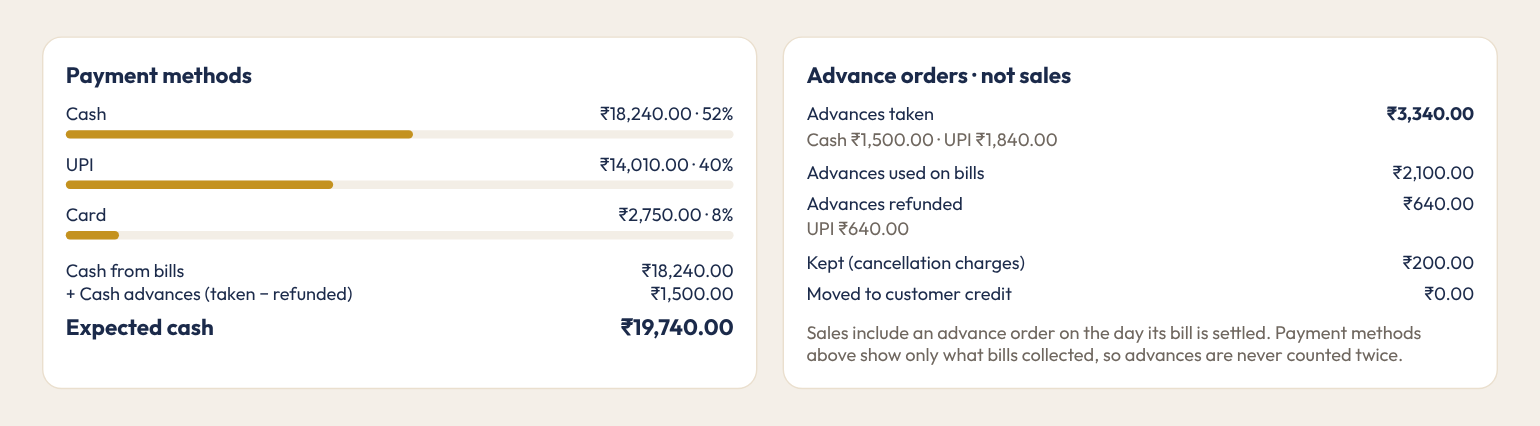
On Reports, Advance orders · not sales shows advances taken, used on bills, refunded, kept as cancellation charges and moved to customer credit. Cash advances are added to Expected cash. The sale is counted on the day the bill is settled, with the advance taken off, so nothing is counted twice. On Advance orders › Advances held, managers pick a month and press Excel (held + cancellation invoices) for your accountant.
On Multi-Outlet, each outlet takes its own advance orders with its own numbers, such as NAP-ADV-0001 and NAP-CXL-0001.
Why restaurants use it: Advance orders and the blog post.